
Generate a custom iPhone wallpaper by prompting LocalGen for a tall composition with one focal point and deliberate empty space, saving the strongest result to Photos, then cropping it in iOS Wallpaper settings. The creative step runs locally after the app and selected model are installed.
Plan for the screen before writing the prompt
A beautiful square illustration can become a frustrating wallpaper if the subject sits behind the clock or important details disappear beneath icons. Decide where the image will live first:
- Lock Screen: reserve a calm area near the top for time and widgets, and keep the primary face or object away from interface elements.
- Home Screen: use lower contrast and simpler detail behind app icons so labels remain readable.
- Wallpaper pair: design one image that tolerates two different crops, or create separate versions with the same palette.
Use phrases such as “tall phone wallpaper composition,” “subject in the lower third,” “open sky above,” or “soft detail behind icons.” These are compositional instructions, not a guarantee of an exact output ratio. LocalGen's public listing does not promise a specific aspect-ratio control.
Write a wallpaper prompt with five decisions
- Visual subject: the landscape, object, character or abstract idea.
- Focal placement: lower third, centred low, off-centre or distant.
- Safe area: open sky above, minimal detail at the top or soft texture behind icons.
- Model and treatment: Anime, Realism, Illustration, Painting or another installed choice.
- Color and light: a palette that stays legible under the iOS interface.
Tall iPhone wallpaper of a quiet mountain lake at blue hour, tiny illuminated cabin in the lower third, expansive simple sky above for the clock, painterly realism, deep navy and amber palette, calm cinematic lightFor a Home Screen, simplify further:
Minimal abstract waves flowing diagonally across a tall phone background, no central object, soft violet and midnight-blue gradient, subtle texture, low contrast behind app icons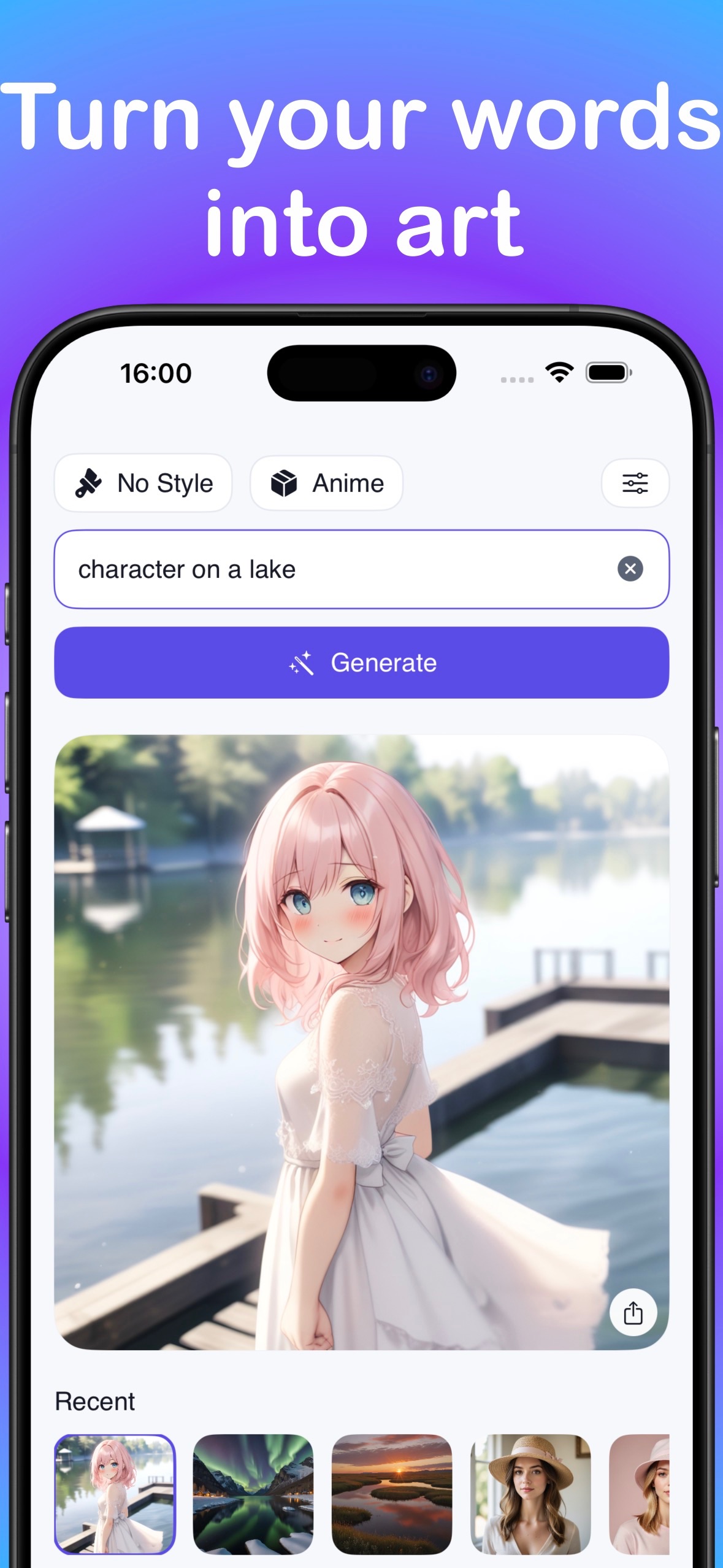
Choose the model that matches the intended background
The current LocalGen listing verifies Anime, Cartoon, Realism, Illustration and Painting model choices. Pick the visual family before refining the words:
- Anime: character scenes, stylized cities and illustrated landscapes.
- Realism: photographic-looking nature, architecture and atmospheric scenes.
- Illustration or Painting: decorative landscapes and softer artistic backgrounds.
- Cartoon: bold shapes and playful subjects that can remain readable at a glance.
Those descriptions are use-case guidance, not a promise that every prompt will produce a specific look. Generate a small set of focused variations and judge them on the actual phone screen.
From prompt to wallpaper in seven steps
- Set up LocalGen while connected. Install the app and the model that fits the intended style. Models require additional device storage.
- Write for a tall screen. Define the subject, its placement, a calm interface-safe area, the treatment and the palette.
- Generate on-device. Start the local generation and review the result at normal phone size, not only zoomed in.
- Refine the composition. If the focal point is too high, explicitly move it lower. If the background is busy, ask for simpler detail.
- Save the chosen image. Export it to Photos using LocalGen's save or share workflow.
- Apply it in iOS. Go to Settings → Wallpaper → Add New Wallpaper → Photos, select the generated image and adjust the crop. Apple also lets you begin from the Lock Screen wallpaper gallery.
- Check both screens. Choose Set as Wallpaper Pair or Customize Home Screen, then verify clock, widgets, icons and labels remain clear.
Apple's current steps are documented in its Change the wallpaper on iPhone guide.
Fix the crop without starting over
If iOS crops too tightly, do not immediately discard the visual idea. Return to the prompt and ask for more surrounding scene, a smaller or more distant subject, or generous space around the focal point. This gives the wallpaper picker more room to reframe.
If icons disappear into the background, reduce small high-contrast details and use a narrower palette. If the Lock Screen clock lacks contrast, move the brightest area away from the top or ask for a darker, simpler sky. Change one of these variables at a time so you can identify what helped.
LocalGen is free to download with optional Pro purchases and generates locally after model setup.
Frequently asked questions
How do I make an AI wallpaper on iPhone?
Describe a tall, phone-friendly composition in LocalGen, choose a suitable on-device model, generate and refine the image, then save it to Photos. In iPhone Settings, open Wallpaper, choose Add New Wallpaper, select the saved photo and adjust the crop.
Can I generate an iPhone wallpaper without internet?
Yes. LocalGen's on-device generation works offline after the app and required model are downloaded. Initial setup needs connectivity and enough free storage.
What makes a good AI wallpaper prompt?
Ask for a tall composition, one clear focal subject, calm space where the clock or icons will sit, edge-to-edge background detail and a coherent light and color direction. LocalGen does not publicly promise a specific aspect-ratio control, so expect to crop in Photos or the wallpaper picker.