
LocalGen is an offline AI image generator for iPhone and iPad after setup. Download the app and install a model while you have internet access. Once that model is stored on a supported device, enter a prompt, generate locally and save the result to Photos without sending the creative job to a cloud generation queue.
How an offline AI image generator works
A browser-based generator sends your prompt to someone else’s servers and returns the result. LocalGen’s supported workflow instead runs a Stable Diffusion model on your iPhone or iPad chip. When using on-device generation, prompts and generated images are processed locally and are not transmitted unless you choose to send or share them. That local model is also the reason generation can continue when a connection is unavailable.
“Offline” still needs one important qualifier: offline after download and setup. The app and your chosen model have to reach the device first. You may also choose to connect later for App Store updates, additional model downloads, sharing, or other online services.
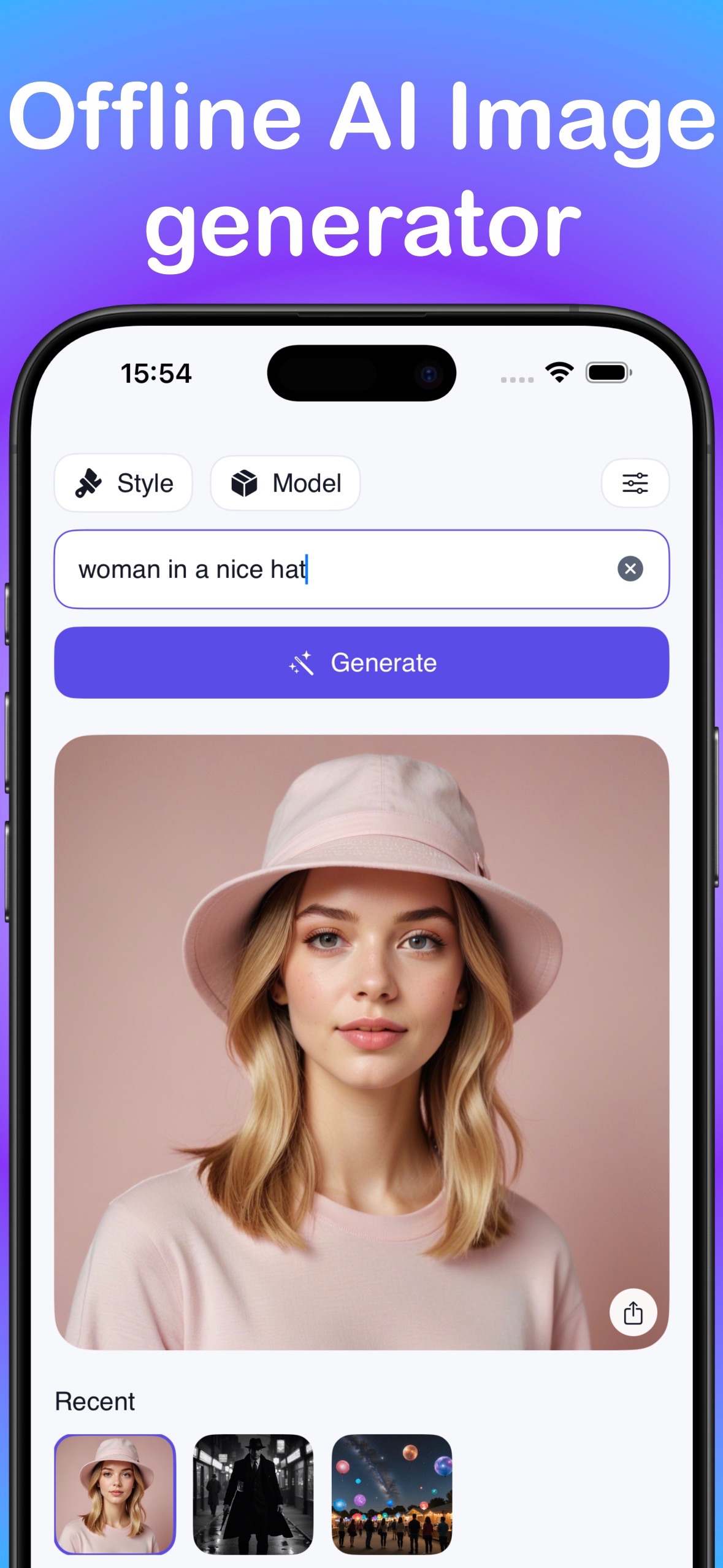
What to prepare before you lose internet
- Install LocalGen: it is free to download and includes optional Pro purchases.
- Install a model: choose a model for the style you want, such as Anime, Cartoon, Realism, Illustration or Painting.
- Leave storage headroom: the App Store download is large, and locally stored models need additional space.
- Check your hardware: LocalGen recommends an A14-class chip, iPhone 12 or newer, or a newer supported iPad. Check the live listing for your specific device.
- Test once: make a sample image before a flight or trip so you know the selected model is ready.
Generate an AI image without Wi-Fi
- While online, download LocalGen from the App Store and open it.
- Open the model library and install a model that fits your intended style.
- After installation completes, open the creation screen and select the installed model.
- Enter a clear prompt describing the subject, style, setting, composition and mood you want.
- Generate the image. Review it locally, then adjust one part of the prompt and create another version if needed.
- Save the result to Photos or share it when the destination is available.
A quiet mountain observatory above the clouds, illustrated travel poster, deep blue night, warm window light, vertical composition, crisp detailWhat an offline AI art app removes—and what it does not
Local processing removes several common web-generator dependencies: you do not need an account, a cloud queue, a per-image token or a daily generation allowance on supported hardware. That makes it useful in airplane mode, on a commute, or anywhere the connection is slow or unavailable.
Your device still does the work. Generation depends on local storage, memory, battery and chip capability. A model can produce a weak interpretation of a prompt, so offline generation does not remove the need to iterate. It also does not make every app feature free; LocalGen is free to download with Pro purchases.
When an offline AI image generator is the better fit
Choose an offline text-to-image workflow when connectivity is the constraint, when you want to keep a creative session on your device, or when repeated ideas would be frustrating behind a credit meter. It is especially practical for drafting wallpapers, character concepts, illustrations, posters and icons while travelling.
If privacy is your main reason, read the private AI image generator guide. It explains exactly which creative content stays local and why that is narrower than claiming the app collects no diagnostic data.
Download LocalGen, install a model, and make the first image before your next trip.
Offline AI image generator FAQ
Can I generate AI images on iPhone without internet?
Yes, after setup. Download LocalGen and install your chosen on-device model while connected. Supported generation can then run locally without Wi-Fi or mobile data.
What must I download before using an offline AI art app?
You need the app and at least one installed model. Complete both downloads and test a generation before going offline.
Which iPhones are recommended for offline AI image generation?
The developer recommends A14-class hardware, including iPhone 12 or newer. Apple’s installation panel and real generation performance are separate questions, so verify the live App Store listing for your device.