
Install LocalGen, download a model that matches the style you want, open the creation screen, type a prompt describing subject, style, setting and mood, then generate. The image is produced on your iPhone and can be saved straight to Photos.
What text-to-image means on iPhone
Text-to-image turns a written description into a picture. LocalGen runs a Stable Diffusion model directly on your iPhone or iPad chip, so the prompt is interpreted locally instead of being sent to a cloud generation queue. There is no account to create and no per-image credit meter on supported hardware.
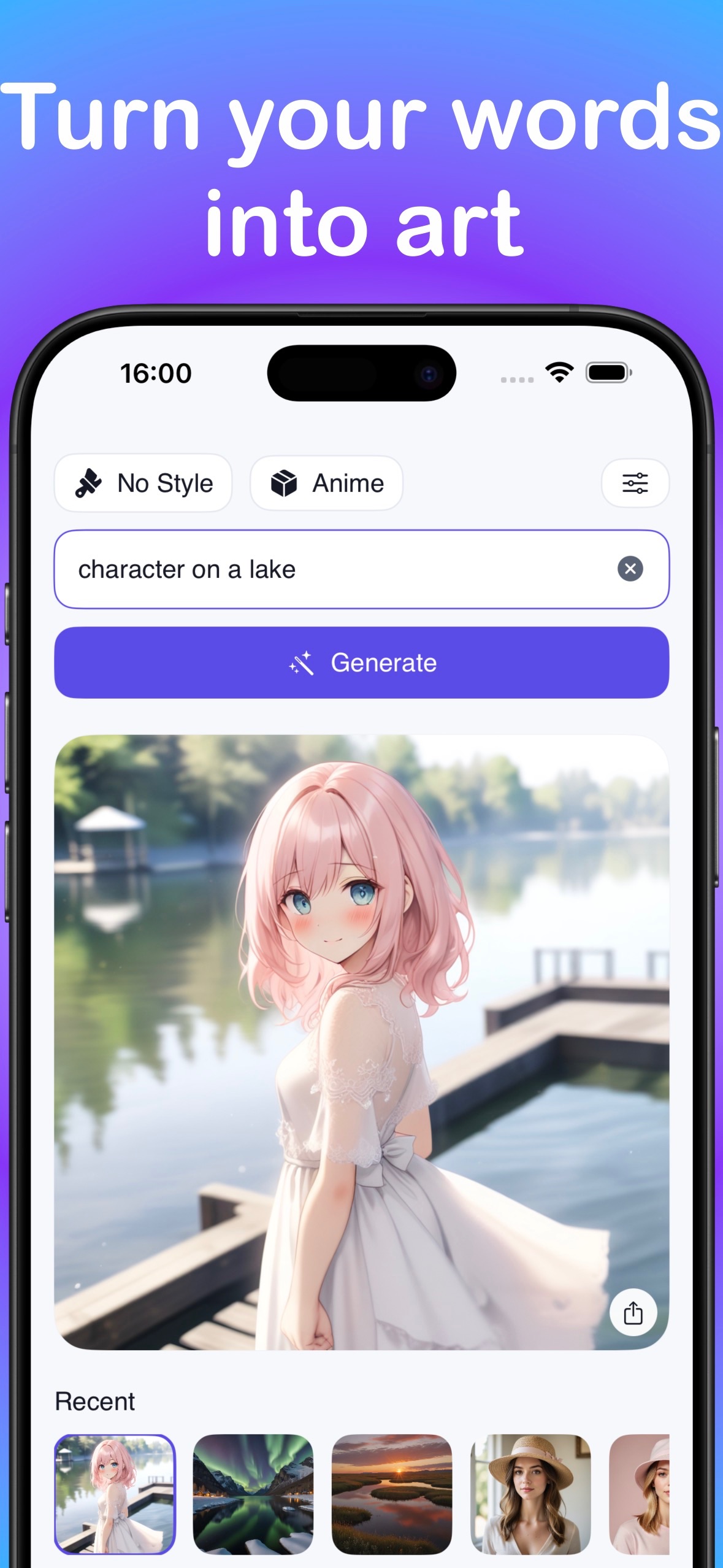
Step-by-step: your first image
- Download LocalGen from the App Store and open it.
- Open the model library and install a model for your style — Anime, Cartoon, Realism, Illustration or Painting.
- Go to the creation screen and select the installed model.
- Write a prompt with four parts: subject, style, setting and mood.
- Generate, review the result, then change one part of the prompt and try again.
- Save the image to Photos when you are happy with it.
A calm fox sitting in tall grass at sunset, soft illustration style, warm golden light, gentle mood, vertical compositionRefining a prompt that misses
Change one thing at a time. If the composition is wrong, adjust the framing words. If the colour feels off, adjust lighting and mood. If the subject is unclear, put it first and keep it concrete. Switching models often changes the result more than rewriting the prompt, so try the same text on a different style model before rewriting from scratch.
For a deeper breakdown of prompt structure, read the AI image prompt guide.
Working offline
Once the app and at least one model are installed, generation runs without Wi-Fi or mobile data. Download everything while you are connected, make one test image, and the workflow will keep working on a flight or anywhere the connection drops. See the offline generation guide for the full setup checklist.
Free to download. Install a model and turn a sentence into artwork on your iPhone.