
A good AI image prompt states the subject, action, environment, composition, visual treatment and lighting or mood in one coherent direction. Generate a draft, identify the largest mismatch and change only the relevant phrase. That controlled loop is more reliable than making the prompt longer after every result.
The six-part prompt formula
You do not need special syntax. You need decisions the image model can reconcile:
- Subject: the central person, object, creature or place. Add only the traits that matter visually.
- Action: what the subject is doing. Use a concrete verb—walking, repairing, reaching, reading, drifting.
- Environment: where and when the image happens, including weather or season when useful.
- Composition: close portrait, full-body view, overhead view, wide scene, focal placement or visual hierarchy.
- Visual treatment: the coherent medium or model direction—anime line art, painterly illustration, realistic portrait or bold cartoon.
- Lighting and mood: one dominant light condition and emotional tone.
A solitary botanist cataloguing luminous flowers, glass greenhouse during a rainstorm, medium-wide composition with the botanist on the left, detailed painterly illustration, cool window light and a quiet sense of wonderRead the prompt as a scene description. If two phrases would require opposite images—“minimal background” and “densely detailed market,” or “soft dawn” and “hard noon light”—choose one.
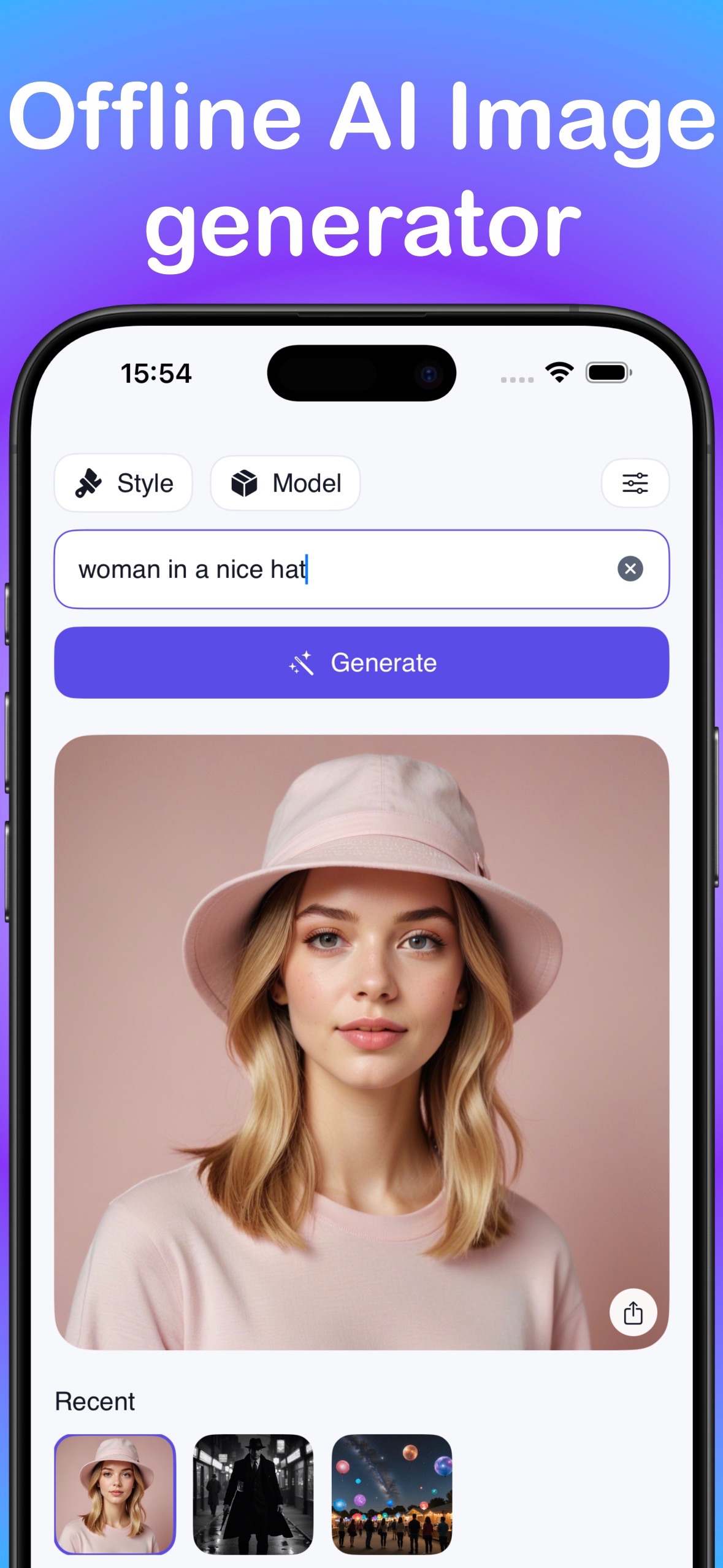
Prompt examples for common image goals
Realistic portrait prompt
Environmental portrait of an independent ceramic artist in her workshop, shaping a bowl at a wooden table, waist-up composition, natural realistic detail, soft north-window light, focused and calmThis specifies context and action instead of relying on “beautiful” or “high quality.” Select an appropriate Realism model when available; the prompt and model should point in the same direction.
Anime character prompt
Original train mechanic with cropped black hair and orange coveralls, checking a small service robot on a night platform, three-quarter character view, crisp anime line art and cel shading, blue station light with warm sparks, determined moodiPhone wallpaper prompt
Tall phone wallpaper of a moonlit coastal cliff, small lighthouse in the lower third, broad simple night sky above for the clock, painterly illustration, indigo and pale-gold palette, peaceful atmosphereConcept-art prompt
Solar-powered research outpost built into a red desert canyon, tiny explorers crossing a suspended bridge, wide establishing shot, detailed science-fiction concept art, late-afternoon rim light, believable and remotePut the important idea first and cut visual noise
Image prompts are not briefs that must mention every possible detail. A useful first version usually has one main subject, one action and one environment. Put those at the beginning. Treat clothing, props and palette as supporting information.
If a result ignores the subject, remove secondary characters and background objects. If the subject appears but the setting is wrong, keep the subject phrase and replace only the environment. If the selected model already establishes Anime or Painting, you do not need to repeat a dozen near-synonymous style labels.
| Weak direction | More actionable direction |
|---|---|
| Beautiful fantasy picture | Hilltop observatory above a cloud sea at sunrise, wide painterly scene |
| Cool anime girl | Original bicycle courier turning into a rainy neon alley, dynamic three-quarter view, anime cel shading |
| Amazing wallpaper, very detailed | Tall minimal aurora landscape, small dark ridge below, open sky for the clock, deep green and navy palette |
| Make it cinematic | Low viewpoint, single warm backlight through fog, wide composition, tense quiet mood |
Refine with one-variable experiments
After each result, ask one diagnostic question: what is the largest visible difference between the result and the idea? Then revise the matching prompt part.
- If the subject is too small, change composition to “close portrait” or “subject fills most of the frame.”
- If the scene feels flat, replace the lighting phrase rather than adding more objects.
- If the style drifts, confirm the selected LocalGen model and use one treatment phrase.
- If the picture is crowded, remove a secondary subject or simplify the environment.
- If the mood is wrong, choose one emotion and one palette that supports it.
Save the baseline and compare it with the next result. LocalGen has no per-image token or daily generation limit for supported on-device generation, so you can run a deliberate sequence without a cloud credit meter. Free download with optional Pro purchases does not mean every model or feature is free.
Use the prompt loop in LocalGen
- Install the app and model. Prepare while connected and leave enough storage for the app and selected on-device model.
- Choose the visual family. Select an available model—such as Anime, Cartoon, Realism, Illustration or Painting—that matches the intended result.
- Enter the six-part prompt. Begin with a subject and action, then add environment, composition, treatment, light and mood.
- Generate a baseline. Treat the first result as information about what the model understood.
- Name the mismatch. Decide whether the main issue is subject, action, environment, composition, treatment or light and mood.
- Change one phrase. Generate again and compare. Keep useful revisions and undo changes that make the image less aligned.
- Save the final result. Export to Photos or share only when the image is ready to leave the local creative loop.
Five prompt mistakes to avoid
- Adjective piles: “beautiful, epic, amazing, stunning” consumes attention without defining visible structure.
- Contradictory styles: combine treatments only when you can explain the intended relationship.
- Too many focal subjects: decide what the viewer should notice first.
- No composition: the model must otherwise guess whether you want a face, full figure or distant scene.
- Changing everything at once: you lose the evidence needed to improve the next iteration.
LocalGen turns the prompt into an image locally after setup—no account or cloud render queue required.
Frequently asked questions
How do I write a good AI image prompt?
Define the subject, action, environment, composition, visual treatment, and lighting or mood. Make the phrases agree, put the most important idea first, then generate a draft and revise one variable at a time.
Are longer AI art prompts better?
Not automatically. A short coherent prompt is easier to diagnose than a long prompt full of competing styles, subjects and lighting directions. Add detail only when it solves a visible problem in the result.
Why does my AI image ignore part of the prompt?
The prompt may contain too many elements, conflicting instructions or a mismatch with the selected model. Move the main subject and action to the beginning, remove secondary details, confirm the model, and test one change at a time.