
To edit a photo privately with LocalGen, keep the edit in its on-device workflow, select a source image, describe one specific change, review the whole result and save only when satisfied. First-party text says creative content in the local workflow is processed on-device, but sharing, syncing, support attachments and optional remote features are separate data paths.
What the current LocalGen listing actually verifies
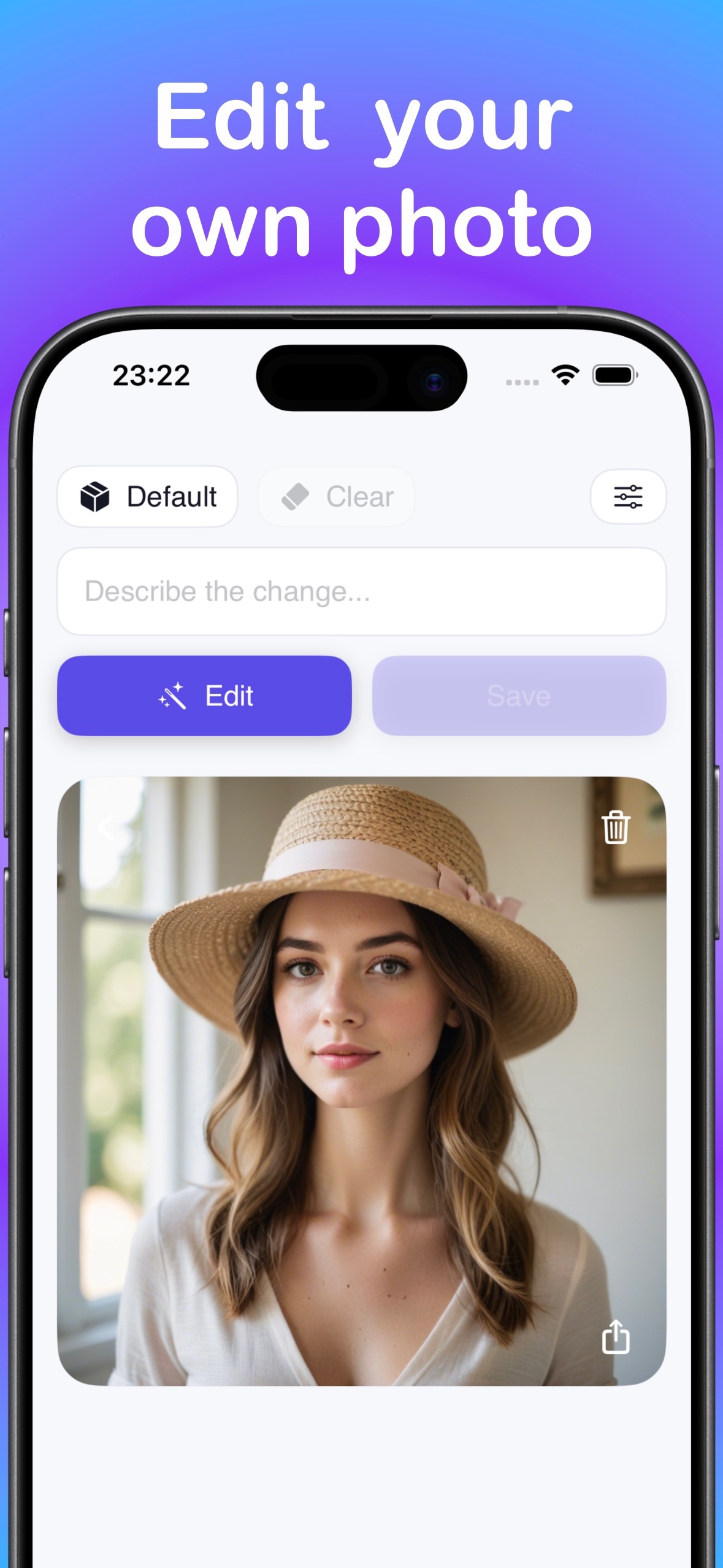
LocalGen added AI Image Edit in its public version 4.0.0 history, and the current App Store screenshot still presents the feature. The visible interface includes a source photo, a model choice labelled Default, a field labelled “Describe the change…,” an Edit action, a Save action and sharing and delete controls.
That evidence supports a simple prompt-based editing workflow. It does not justify promising unshown tools such as brushes, masks, layers, object selection, face locking or exact resolution controls. This guide therefore uses only the controls and behavior visible in the public listing.
What “private AI photo editing” means here
LocalGen's listing and first-party legal text say prompts, source images and generated images in the offline/on-device workflow are processed and stored locally. This avoids automatically sending the creative input to an external render server for that mode.
It does not mean the entire app has no network activity or analytics. The App Store privacy label says data not linked to you may include product interaction for analytics and app functionality, plus crash, performance and other diagnostic data. Your edited image can also leave the device when you deliberately:
- use the visible share control;
- save into a Photos library that syncs through iCloud;
- attach a photo to a support request; or
- choose an optional remote feature instead of the on-device workflow.
If the photo is sensitive, verify the current mode, consider Photos sync settings and decide where the saved result should go before editing.
Protect the original before the first edit
AI editing produces a newly interpreted image, not a guaranteed reversible adjustment. Before opening LocalGen:
- Keep an untouched copy in Photos or Files.
- Choose a source where the subject and requested change are visually clear.
- Crop only if doing so makes the intended subject easier to identify; preserve the original separately.
- Remove unrelated sensitive material from the frame if it is not needed for the edit.
- Decide whether the result may sync or be shared after saving.
Write one precise change request
A useful edit instruction contains three parts: the target, the requested change and what should remain stable.
Change the plain wall behind the subject into a softly lit library; keep the person's pose, clothing and overall framing unchanged.Start with one edit. “Replace the background, change the outfit, fix the lighting and add two people” gives the model several competing tasks and makes it harder to know which instruction caused an unwanted change.
Useful instruction patterns
- Background: “Replace the background with [setting]; keep [subject details] unchanged.”
- Atmosphere: “Change the scene to [time/weather]; preserve the composition and subject.”
- Object appearance: “Change [specific object] to [new color/material]; keep everything else as close as possible.”
“Keep unchanged” is a request, not a geometry guarantee. Inspect faces, hands, text, logos, edges and small accessories before accepting the result.
Use the verified LocalGen edit workflow
- Finish setup while connected. Install LocalGen and any required local model, then verify the on-device workflow is available.
- Open AI Image Edit. Enter the edit experience shown in the current listing and choose the source photo.
- Confirm the intended model or mode. Use the available on-device choice; the screenshot shows Default, but current options may change.
- Describe the change. Enter one target, one change and the important elements to preserve in the “Describe the change…” field.
- Start the edit. Use the Edit action and wait for the local result.
- Review the entire image. Compare subject, background, small details and framing with the untouched original—not only the edited area.
- Refine or save. Tighten one phrase and edit again if needed. Use Save or share only when the result and destination are acceptable.
Use a before-and-after review checklist
- Did the requested change happen clearly?
- Did facial features, hands, text or identity-defining details change unexpectedly?
- Are edges and reflections consistent with the new background or object?
- Does the output still have the framing needed for its final use?
- Are you saving locally, syncing through Photos or actively sharing?
If the edit is too broad, narrow the target and explicitly remove unnecessary instructions. If the subject changes, use a simpler request or a source image with clearer separation between subject and background. Local generation removes a cloud render queue; it does not remove the need for human review.
Download LocalGen, prepare the on-device model and keep the original before making the first change.
Frequently asked questions
Can I edit a photo with on-device AI on iPhone?
Yes. LocalGen's current App Store screenshot and version history verify an AI Image Edit workflow. The screenshot shows a source image, a Describe the change field, an Edit action and Save and share controls.
Does LocalGen upload the photo I edit?
When you use LocalGen's on-device editing workflow, first-party text says the source image, prompt and result are processed locally. Content can still leave when you choose to share or sync it, attach it to support, or select a separate remote feature. The App Store privacy label also discloses analytics and diagnostics categories.
How should I describe an AI photo edit?
State the one change you want, identify the area or subject, and say which important elements should remain unchanged. Start small, review the entire result and revise one instruction at a time.