
Use A14-class hardware—iPhone 12 or newer—or the newer iPads named by the developer as the practical LocalGen threshold. Apple's technical compatibility panel says the binary requires iOS/iPadOS 18 and A12 Bionic or later, but that broader technical list does not override the developer description, which marks iPhone 11 and earlier unsupported.
Why the App Store shows A12 while LocalGen recommends A14
The two statements answer different questions:
- Apple's technical compatibility panel: whether the submitted app binary and operating-system metadata allow the storefront to present an install option. It currently says iOS or iPadOS 18.0 and A12 Bionic or later.
- The developer-written performance guidance: which devices LocalGen recommends for compute-intensive local generation. It currently says A14 Bionic, M1 or newer and lists iPhone 12 or newer.
An install button is not a performance benchmark. It does not promise that every downloadable model will fit comfortably, generate at a particular speed or deliver the same experience on every technically listed device. Until the two public statements are reconciled, use the narrower A14 recommendation.
| Public signal | What it says | How to use it |
|---|---|---|
| Minimum OS | iOS or iPadOS 18.0 | The app cannot install below the listed operating system. |
| Apple technical panel | A12 Bionic or later | Treat as storefront eligibility, not a generation-performance guarantee. |
| Developer recommendation | A14 Bionic, M1 or newer | Use as the practical hardware threshold. |
| Recommended iPhone | iPhone 12 or newer | Still verify the live listing, storage and the model you need. |
| Explicitly unsupported iPhone | iPhone 11 or earlier | Do not depend on LocalGen even if the storefront offers installation. |
iPhone compatibility: the practical reading
iPhone 12 or newer
This is the current developer-recommended range. iPhone 12 uses A14 Bionic, matching the recommended chip class. That makes “iPhone 12 or newer” the clearest public answer to “can my iPhone run Stable Diffusion with LocalGen?” It still does not guarantee an exact generation time, output resolution or identical behavior across all models.
iPhone 11, XS, XR and other older devices
Some of these devices fall into the broader A12-or-later technical metadata, but the developer description explicitly says iPhone 11 or earlier is not supported. Follow that explicit restriction. Do not plan an offline workflow around an older phone merely because the App Store panel appears to list it.
Before downloading
Open the live LocalGen App Store listing on the intended iPhone. Confirm that Apple offers the current version, the device can run iOS 18 or later, and there is substantially more free space than the app download alone.
iPad compatibility: follow the named recommendations
The current LocalGen developer description recommends A14 Bionic, M1 or newer Apple silicon and names:
- iPad (10th generation) or newer;
- iPad Air (4th generation) or newer; and
- iPad models released after 2022.
It also marks iPad (9th generation) or earlier, iPad Air (3rd generation) or earlier and iPads released before 2020 as unsupported. The wording overlaps rather than defining every model line perfectly, so check the live listing on the exact iPad rather than inferring from the year alone.
LocalGen's iPad screenshots verify the same broad workflow—prompt, model selection, on-device generation and gallery—on a larger display. A larger screen can make prompt writing and result review more comfortable; it does not by itself determine whether the chip meets the recommendation.
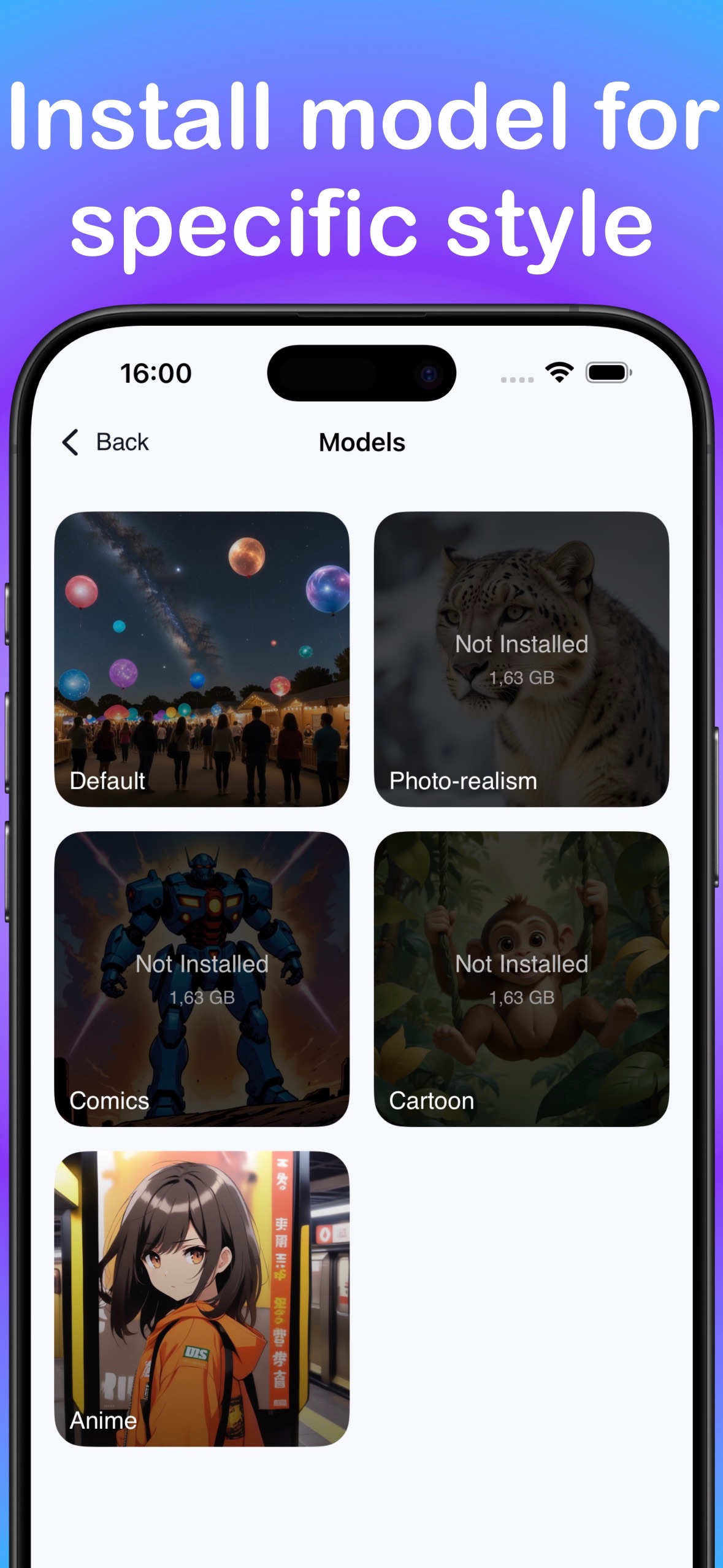
Plan for iOS 18, the app and model storage
The current KZ App Store listing shows a 2.8 GB LocalGen download. The on-device models are additional. In a current model-library screenshot, several choices are marked 1.63 GB, but that is a visual example—not a promise that every model has the same size or that future sizes will remain unchanged.
Before setup:
- Update to iOS or iPadOS 18 or later.
- Check the live App Store download size, not only the number in this guide.
- Choose which model you actually need before downloading several.
- Leave headroom beyond the app and model files for installation, generated images and normal device operation.
- Use a reliable connection for the initial app and model downloads.
LocalGen works offline after setup; “after setup” matters. Airplane mode is the wrong time to discover that the intended model was never downloaded.
LocalGen compatibility is separate from Apple Intelligence
LocalGen does not use the Apple Intelligence device list as its published requirement. Apple currently requires iPhone 15 Pro models or iPhone 16 models and later for Apple Intelligence, while LocalGen's developer recommendation begins with iPhone 12. These are separate products with separate models and should not be used as proxies for each other.
If you are deciding between the two, compare workflows only after confirming eligibility for each. The Image Playground alternative guide covers the current requirements without implying that one tool is universally better.
A low-risk setup test
- Verify the exact device. Check model name, OS version and available storage in Settings.
- Check the live listing. Confirm Apple offers LocalGen to that device and read the latest developer compatibility note.
- Install one intended model. Avoid downloading every style before confirming the main workflow.
- Run a simple prompt while connected. Verify generation and saving before relying on offline use.
- Test offline deliberately. Turn off connectivity only after the required assets are present and confirm the on-device workflow operates as expected.
If a technically eligible A12/A13 device behaves poorly or the developer marks it unsupported, do not treat repeated retries as a compatibility solution. Move the workflow to hardware within the A14-or-newer recommendation.
The live App Store is the final installation check. A14-class / iPhone 12 or newer is the developer's current recommendation.
Frequently asked questions
Can iPhone 12 run Stable Diffusion with LocalGen?
The current LocalGen developer description recommends A14-class hardware and explicitly lists iPhone 12 or newer for the best experience. This supports trying LocalGen on iPhone 12, but it is not a promise of a particular generation speed or support for every model.
Does LocalGen support iPhone 11 or older iPhones?
Do not rely on it. Apple's technical panel may show installation eligibility for some A12-or-later devices, but the LocalGen developer description explicitly says iPhone 11 or earlier is not supported. Follow the narrower developer recommendation and check the live App Store on the device.
Which iPads are recommended for LocalGen?
The current developer description recommends A14 Bionic, M1 or newer Apple silicon and lists iPad 10th generation or newer, iPad Air 4th generation or newer, and iPad models released after 2022. Check the live listing because public compatibility language can change.